
-Jun-12-2026-10-19-14-1189-AM.png)


Culling in Lightroom means manually flagging, rating, and rejecting images inside Lightroom Classic to narrow a large shoot down to your final selects. It works, but for high-volume photographers it is the single slowest part of the workflow. Thousands of near-identical frames, catalog lag, and hours of clicking before a single edit happens. FilterPixel replaces that manual pass with AI culling that analyzes your entire shoot before Lightroom, so you import only your best frames. Photographers migrating to this workflow report cutting post-production time by up to 80% on high-volume event work.
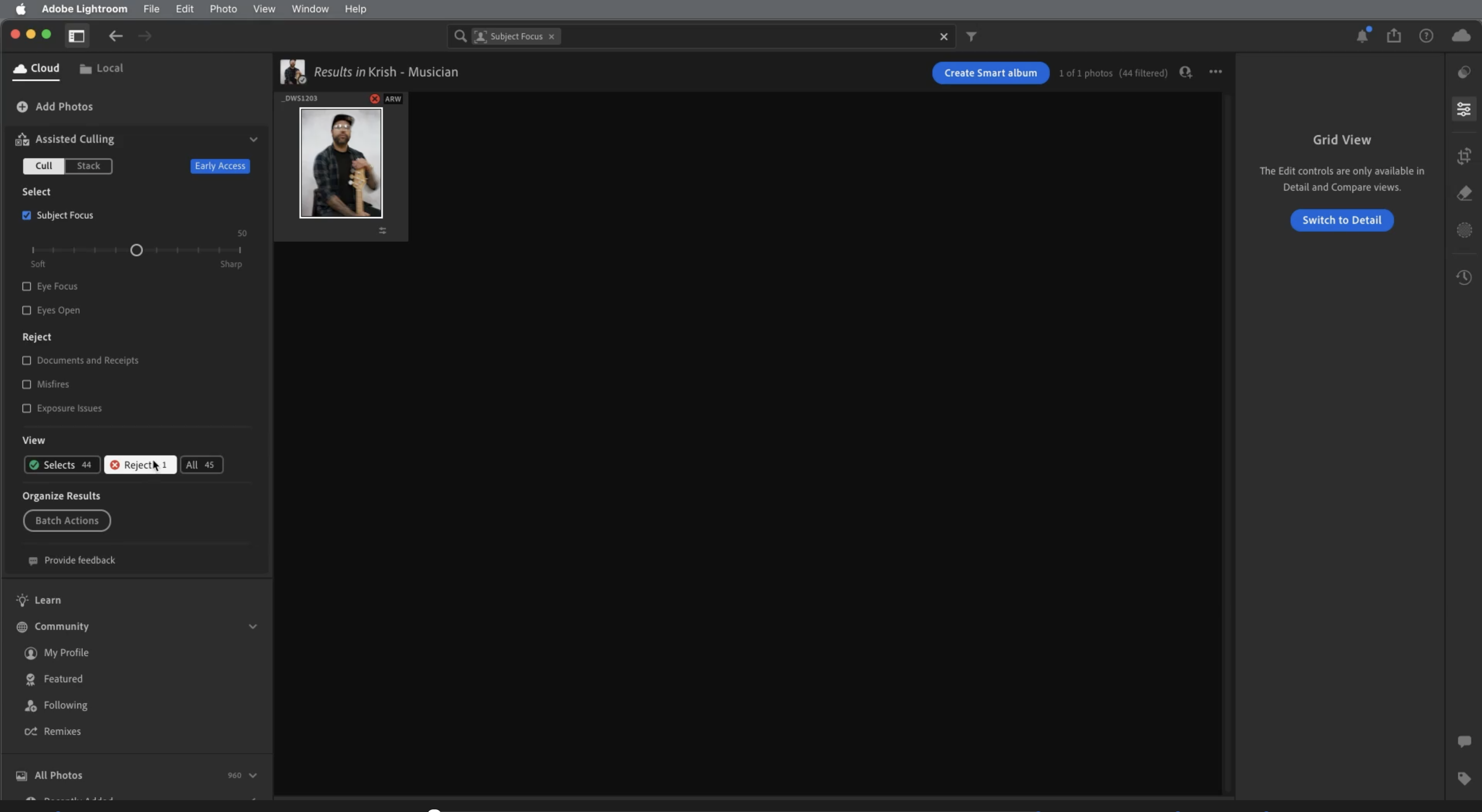
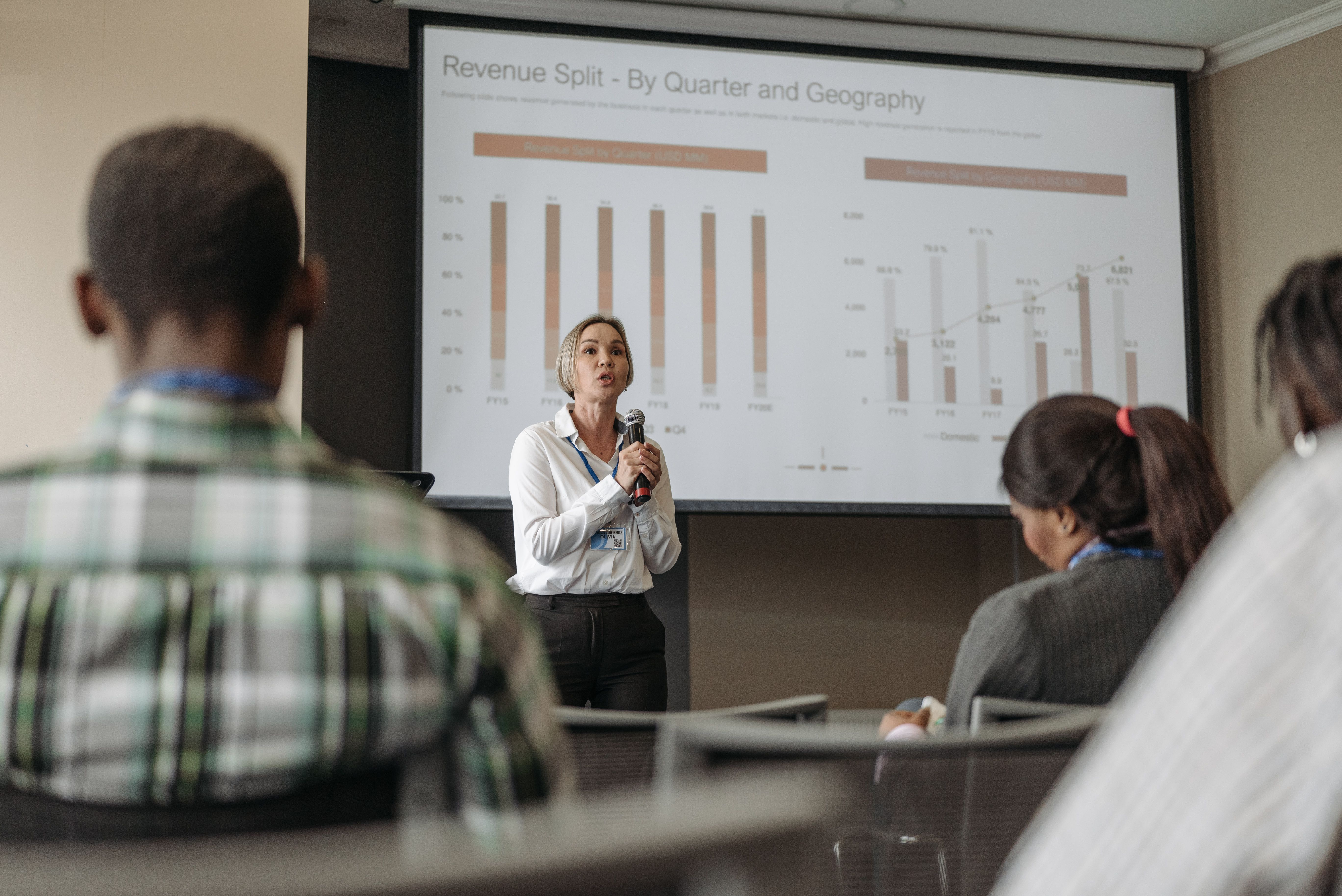
You just wrapped a 3-day corporate conference with 4,500 raw files. The marketing team needs 150 sponsor photos by tomorrow morning and a full gallery of 300 by Friday. Your current Lightroom workflow means manually flagging through thousands of nearly-identical shots, fighting catalog lag, and spending your whole week at the computer instead of booking the next event. This guide walks through migrating from manual Lightroom culling to a FilterPixel workflow that does the heavy lifting before you even open Lightroom.
What Is Culling in Lightroom?
Culling is the process of reviewing every frame from a shoot and deciding which ones make the cut. In Lightroom Classic, this happens through a combination of pick flags (P / X), star ratings (1–5), and color labels, usually reviewed in the Library module's Survey or Compare views.
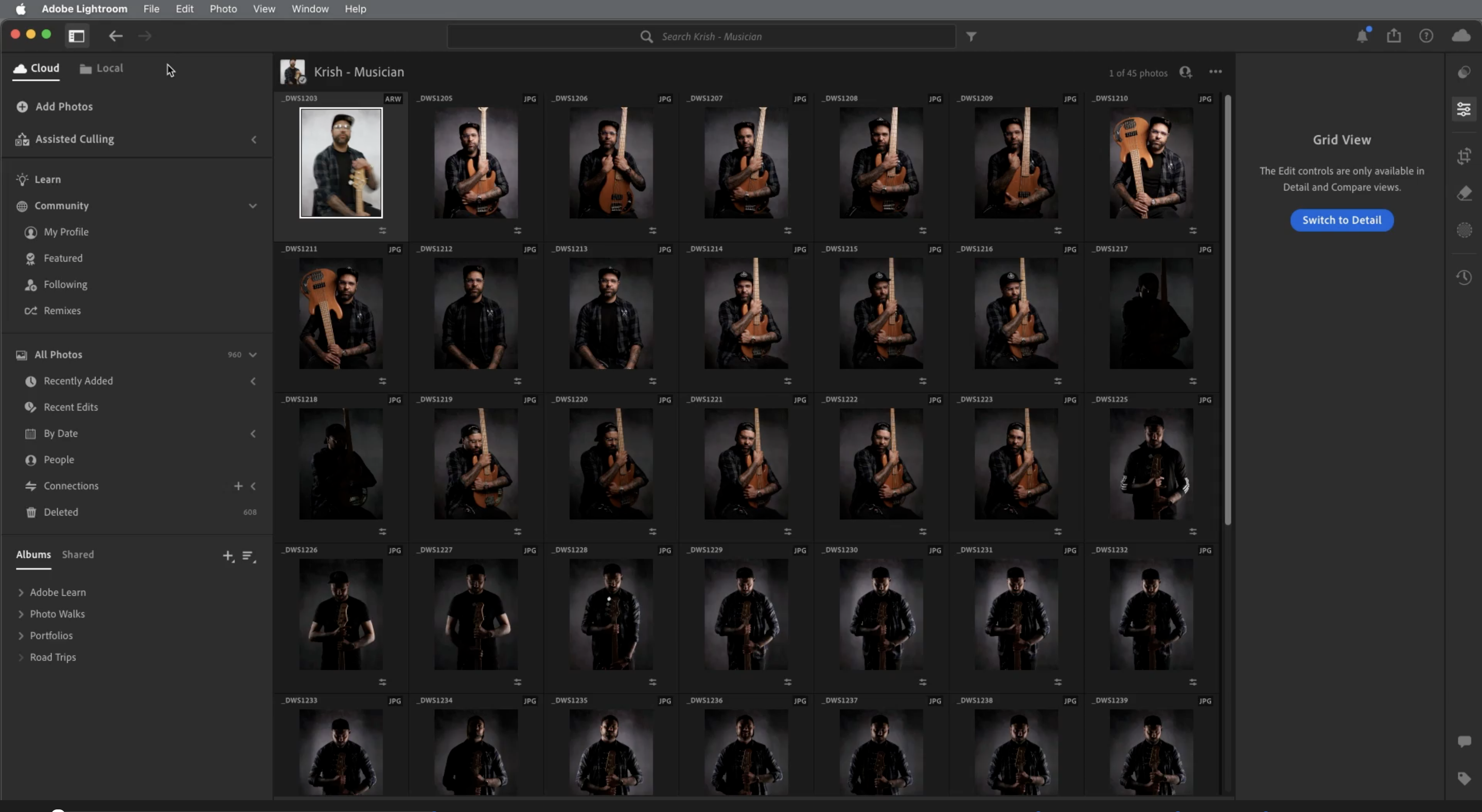
Adobe added an "Assisted Culling" feature to Lightroom Classic in 2024, which flags obvious technical issues like blur and closed eyes during import. It helps a little, but it still operates inside Lightroom, meaning every image - good or bad, has to be loaded into your catalog first. You are still the one making the vast majority of selection decisions, frame by frame.
Why Manual Lightroom Culling Isn't Recommended for High-Volume Work
For a portrait session of 200 images, manual culling is fine. For a conference, wedding, or sports shoot running into the thousands, it becomes the bottleneck that defines your entire week. Here's why:
- It's slow. Manually flagging a 3,000–5,000 image event routinely takes 6–8 hours before any editing begins. That's time you can't spend shooting or booking.
- It bloats your catalog. Loading 4,000+ images into Lightroom creates a 15–20GB catalog that slows down every operation like import, preview generation, scrolling, and export all lag.
- It has no genre intelligence. Lightroom's Assisted Culling judges technical quality only. It can't tell a keynote speaker's gesture from an awkward transition, doesn't know a sponsor logo needs to be visible, and can't recognize that networking shots need readable name badges.
- It's inconsistent. Selection standards drift across a long shoot. The frames you pick at hour one and hour seven aren't held to the same bar, especially under deadline fatigue.
- It keeps you at the computer. Photographers spend roughly 20% of their time shooting and 80% in post. Manual culling is the biggest single contributor to that imbalance.
A Better Option: FilterPixel
Instead of culling inside Lightroom use dedicated culling softwares like FilterPixel. It handles selection before Lightroom and hands you only your best frames to edit. FilterPixel is an AI-powered culling platform built specifically for professional, high-volume photographers working under deadline pressure — event, conference, sports, and wedding shooters who can't afford to lose a week to post.
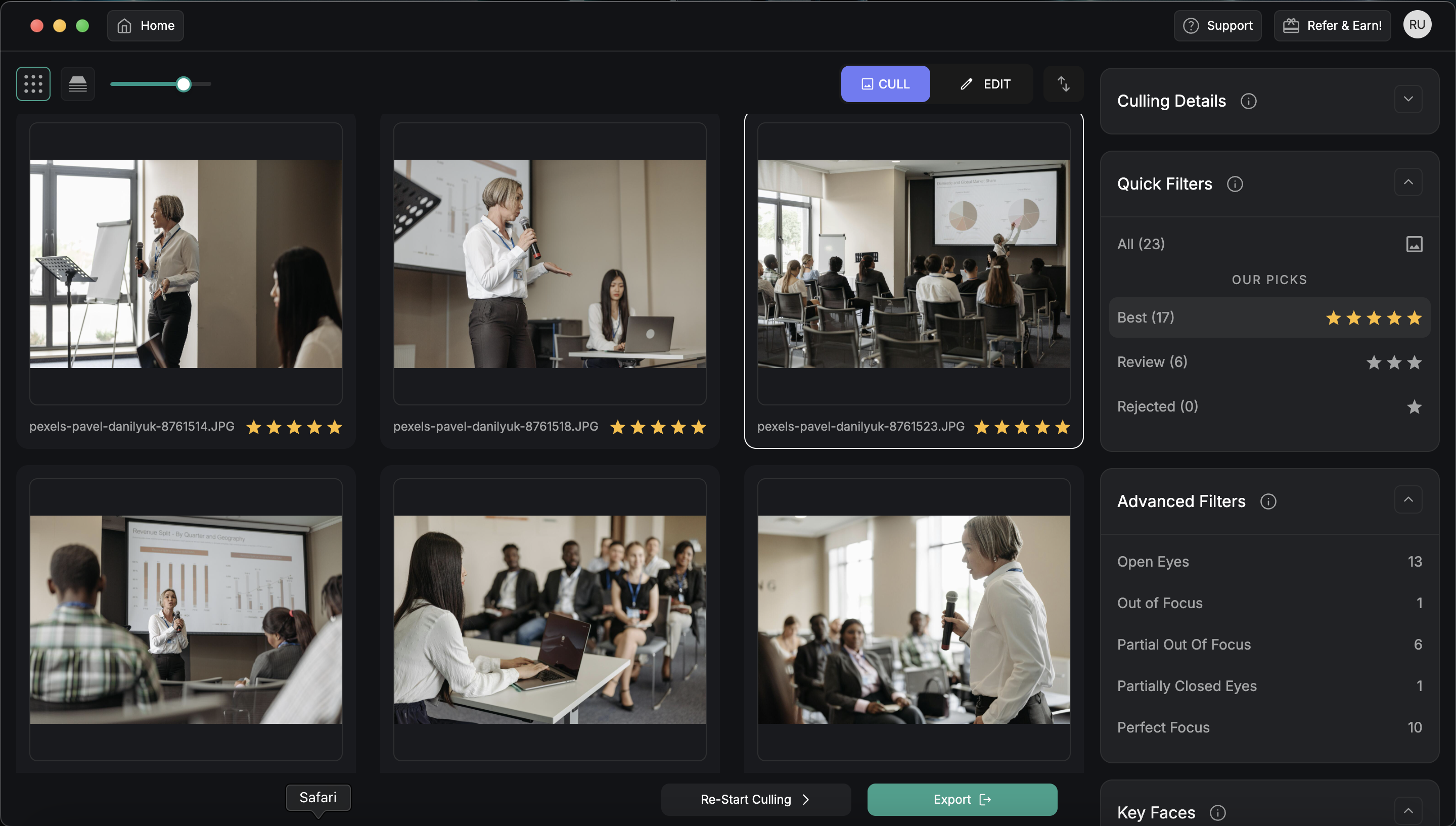
The workflow is simple: FilterPixel analyzes your entire shoot, selects the keepers, and exports them with ratings intact straight into Lightroom. You import 300 final selects instead of 3,000 raw files, keeping your catalog lean and your editing workflow completely unchanged.
Why FilterPixel Is the Better Option
- Speed. FilterPixel processes high volumes of images per minute, turning a culling pass that took hours into one that takes minutes.
- Genre-specific intelligence. It's trained on the contexts that actually matter for conference, sports, wedding, concert so it understands what a "keeper" looks like in your genre, not just whether a frame is technically sharp.
- Transparent decisions. Every selection comes with a reason, so you're never handed a black-box pick. You stay in creative control.
- Lean catalogs. Because you import only selects, a 3,000-image conference becomes a ~300-image Lightroom import catalog size drops dramatically and performance stays fast.
- Built for deadlines. The entire product is designed around the reality of high-volume shooters who need to deliver same-night or next-morning.
-2.png?width=4050&height=810&name=BLOG%20DRAFTS%20(4)-2.png)
Key Features: Meet DeepCull
FilterPixel's AI culling engine is called DeepCull. It's the core of the platform and the part that replaces your manual Lightroom pass. Here's what it gives you:
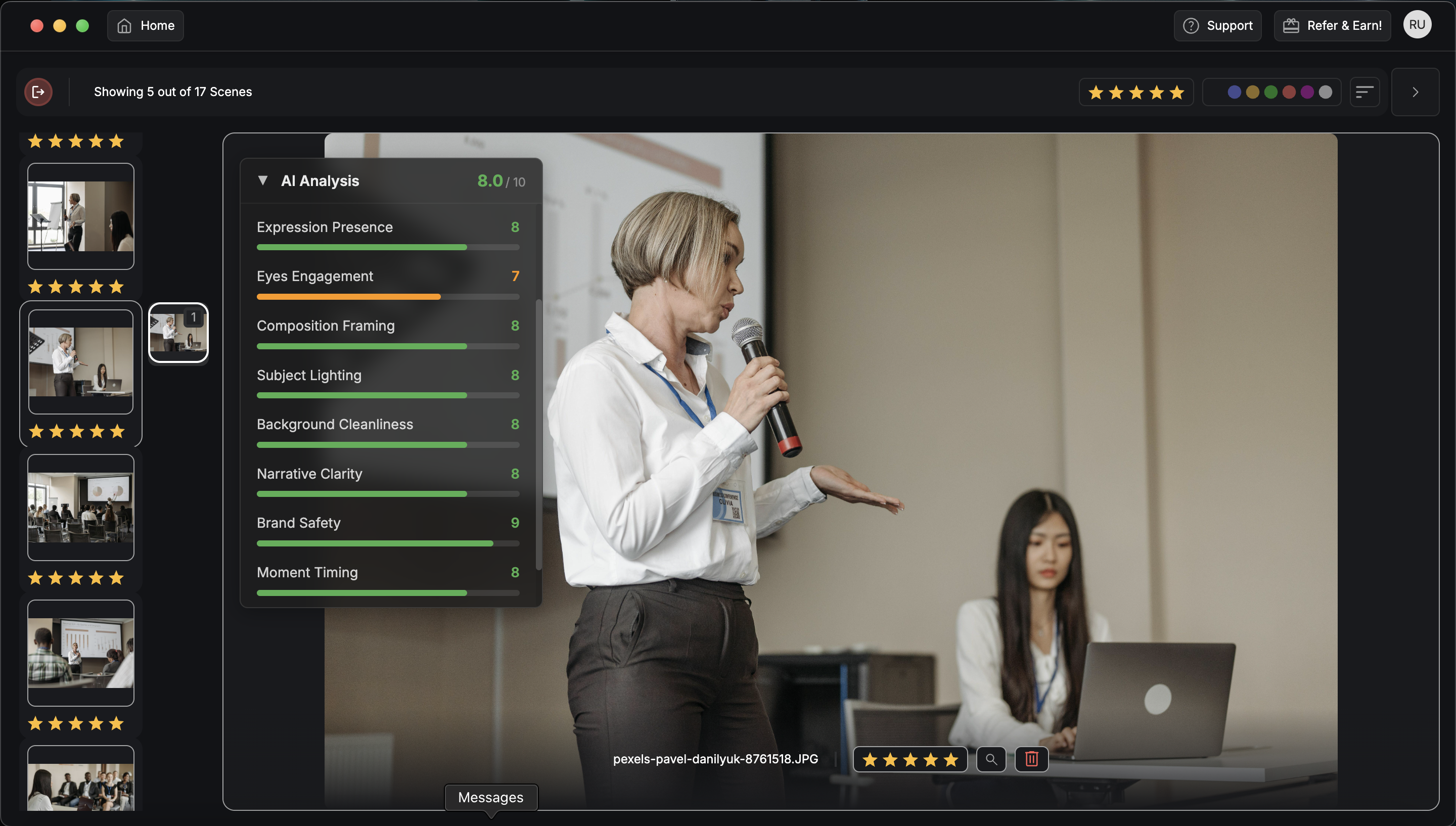
- DeepCull AI culling — Genre-specific models (conference, sports, wedding, concert) analyze every frame for sharpness, exposure, composition, and context-aware criteria your genre depends on.
- Score + Reason — Every image gets a score and a plain-language reason for it (e.g. "sharp focus + good expression + clear branding"), so you understand the selection logic and can make informed overrides.
- Key Faces — Tell FilterPixel who matters in a shoot so the people who count are prioritized in selection.
- Magic Number — Set the percentage or count of frames you want delivered, and DeepCull targets that selection size for the shoot.
- AI Profiles — Selection criteria tuned to how you shoot, so picks reflect your style rather than a generic default.
- Best / Review / Rejected buckets — Selections are sorted into clear buckets so you can move fast and spot-check rather than re-reviewing everything.
- Basic Cull — A technical-filtering mode for quick passes when you want straightforward quality filtering rather than full DeepCull intelligence.
- Survey Mode and Focus Mode — Human comparison passes for the final 10–15% where your judgment matters most.
- Direct Lightroom integration — Selected raw files export with XMP sidecars and star ratings, dropping straight into your existing Lightroom workflow.
-2.png?width=4050&height=810&name=BLOG%20DRAFTS%20(6)-2.png)
How to Start Migrating: Step by Step
Step 1: Prepare Your Raw Files
Organize each session or shoot day into its own folder with a clear RAW/ and Culled/ structure. Processing each day separately lets DeepCull apply the right context (morning presentations vs. evening networking). Before you begin, enable "Automatically write changes to XMP" in Lightroom's Catalog Settings so any existing ratings travel cleanly between tools.
Step 2: Run DeepCull
Point FilterPixel at your shoot and select your genre to activate the right model. Set your Magic Number (for a day-long conference, 8–12% of total shots is typical), and let DeepCull analyze the full set. It sorts everything into Best / Review / Rejected, with a Score + Reason on each frame.
Step 3: Review and Override
No culling tool is perfect, budget about 10–15% of your old culling time for review. Use Survey Mode and Focus Mode to spot-check the Best bucket and rescue anything important from Review. Focus your attention where human judgment matters: keynote moments, sponsor visibility, and group shots where everyone needs to be present.
Step 4: Export to Lightroom
Export your selects directly to Lightroom. FilterPixel copies the selected raw files and generates XMP sidecars with your star ratings, so only your final picks land in the catalog. A 3,000-image conference becomes a ~300-image import roughly a 90% reduction in catalog size.
Step 5: Edit as Usual
Your Lightroom presets, develop settings, and delivery workflow stay exactly the same. The only change is that you're now editing pre-selected keepers instead of flagging through thousands of frames. Organize your imports into delivery-based collections (Client Gallery, Sponsor Highlights, Speaker Portraits, Networking) to speed final selection.
Measuring Your Migration Success
Track these to quantify the improvement:
- Culling time: typically drops from 6–8 hours to 1–2 hours on conference work
- Lightroom performance: catalog operations run noticeably faster with smaller imports
- Delivery speed: most photographers report meaningfully faster turnaround
- Consistency: selection standards stay uniform across the whole shoot
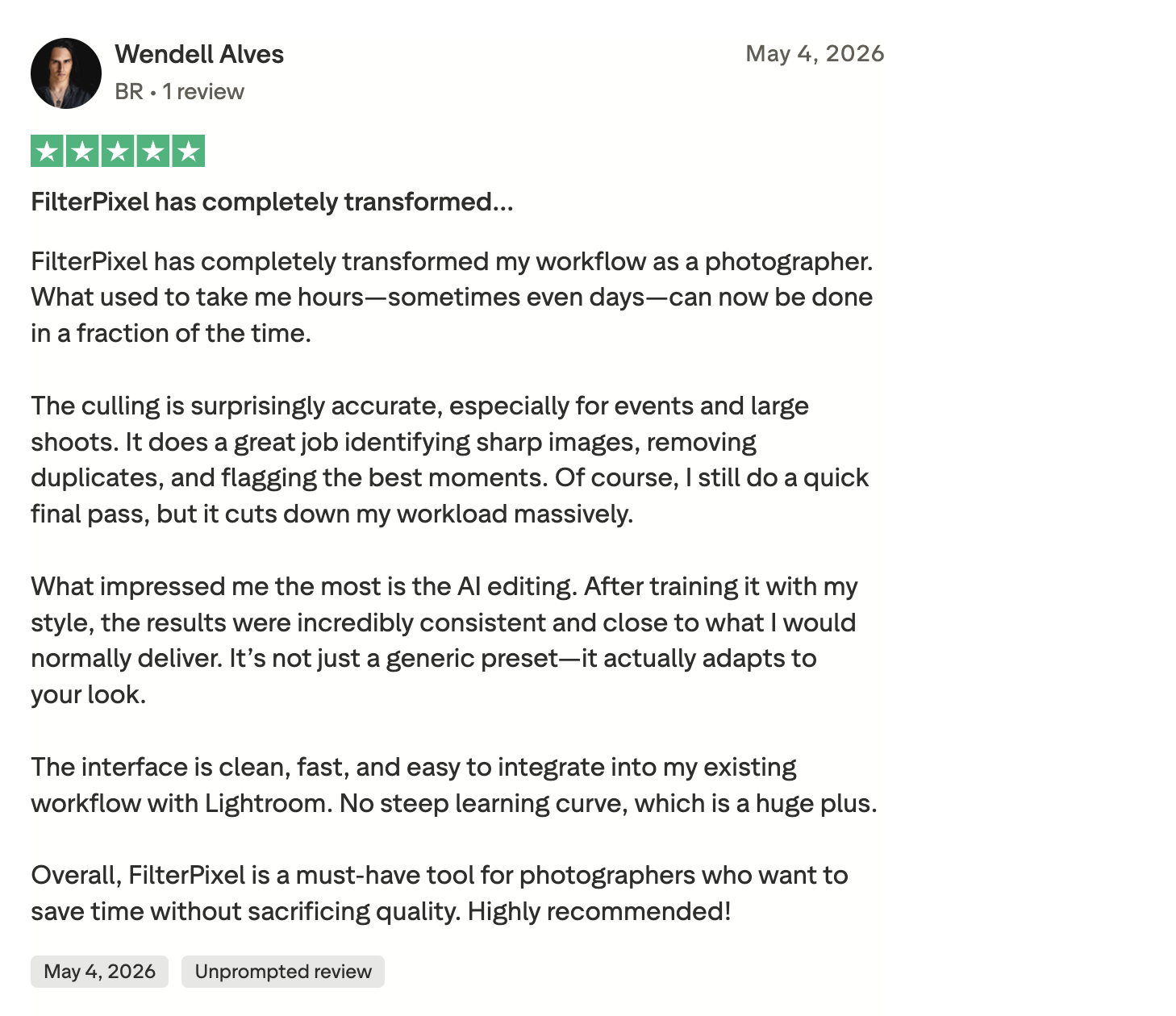
What Photographers Say
Have backlog of thousands of photos? FilterPixel culls them in minutes using genre-specific AI. Try DeepCull free → -1.png?width=4050&height=810&name=BLOG%20DRAFTS%20(7)-1.png)
Frequently Asked Questions about Migrating from Lightroom
Does Lightroom do culling?
Yes, Lightroom Classic supports manual culling through pick flags, star ratings, and color labels, plus an "Assisted Culling" feature that flags technical issues like blur and closed eyes during import. However, it works inside the catalog and lacks the genre intelligence of a dedicated tool like FilterPixel, which culls before import to prevent catalog bloat.
How is FilterPixel different from culling in Lightroom?
FilterPixel uses DeepCull, a genre-specific AI engine, to analyze your entire shoot before Lightroom and hand you only your best frames with a transparent Score + Reason on each. Lightroom requires you to load every image into the catalog and flag through them manually.
Will FilterPixel work with my existing Lightroom presets?
Absolutely. FilterPixel handles only selection our AI profiles, develop settings, and editing workflow remain unchanged. You simply work with pre-selected images instead of manually flagging through thousands of shots.
How accurate is FilterPixel's culling for high-volume work?
DeepCull's genre-specific models are tuned for event, conference, sports, and wedding contexts. Most photographers spot-check the final 10–15% for context-specific decisions like sponsor visibility or keynote timing, where human judgment is the final word.
What happens to images FilterPixel doesn't select?
Unselected images stay in your original raw folders and aren't imported to Lightroom, keeping your catalog lean. You can always promote additional frames later if a client makes a special request.



-Jun-19-2026-12-08-11-9138-PM.png)